
How to use Relationship fields
A Relationship field creates a link between a field on the Contact object and a field on another object. When two fields are related, they stay connected — the value in one field points to the value in another, and updates on one side reflect on the other.
Use it any time information stored on a Contact needs to stay in sync with information on a Company, Deal, or another Contact.
For an overview of all field types, see Creating Fields. For a broader introduction to fields, see Understanding Fields.
When to use a Relationship field
Here are some examples:
Keep the employer name in sync
Link the Company field on a Contact to the Name field on the Company object. When the Company's name changes, the Contact's employer field reflects the update automatically.
Track a contact's primary deal
Link a field on the Contact object (like Active Deal) to the Name field on the Deal object. The Contact always shows the current deal it's tied to, and any change to the deal's name flows through.
Model referral relationships
Link a field on the Contact object (like Referred By) to the Name field on another Contact. Each contact record shows who referred them, and the referring contact stays connected across name updates.
How to create a Relationship field
Relationship fields can be created on Contacts, Companies, and Deals. Follow the standard field creation flow. See Creating Fields for the three entry points.
In the Create Field modal, pick Relationship as the field type. The Configure relationship section appears.
Configure relationship
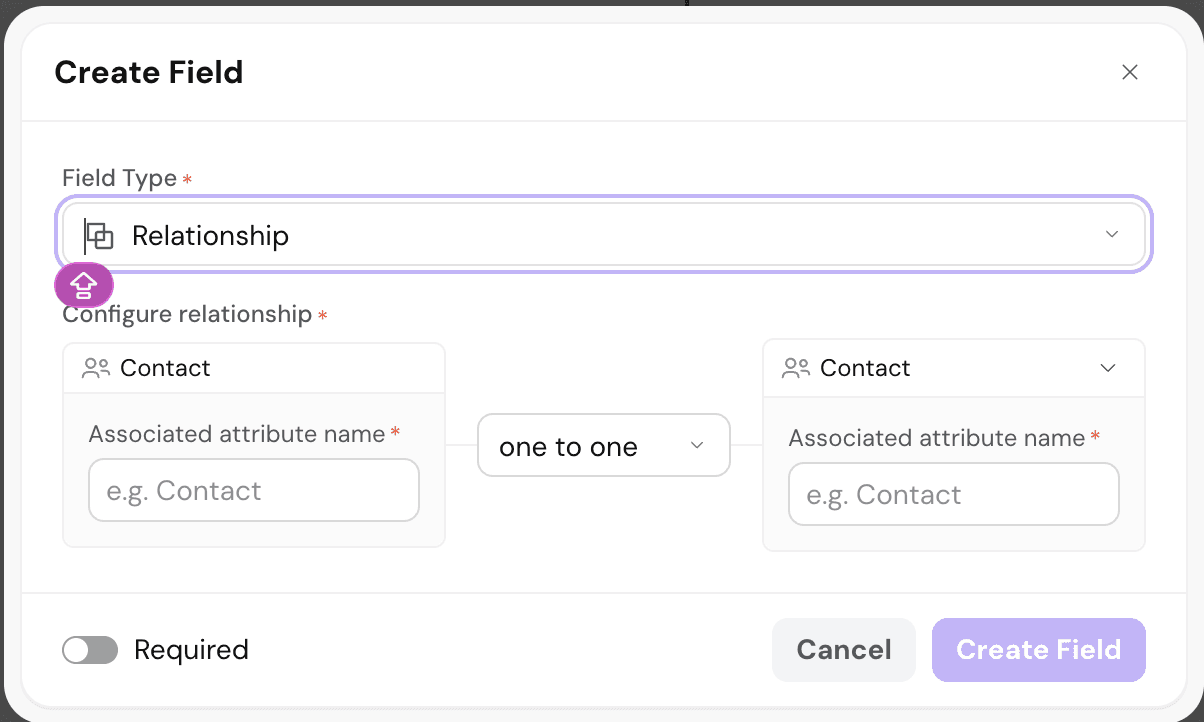
The Configure relationship section has three parts.
- The Contact object (left side). - Fixed. Relationship fields are always created from the Contact object, so this side always shows Contact. Enter the field associated with a contact to link from in the Associated field name box.
- The target object (right side) - The object to link to. Pick from Contact, Company, or Deal, then enter the field associated with that object to link to in the Associated attribute name box.
- Cardinality (middle dropdown) - How many values on each side can be linked. Four options are available. See below.
- Required (toggle at the bottom) - When enabled, the field must have a linked value before the record can be saved.
- Click Create Field to save.
Understanding Relationship types
Relationship types decide how many values on each side can be linked. Pick based on how the two fields actually relate in the real world.
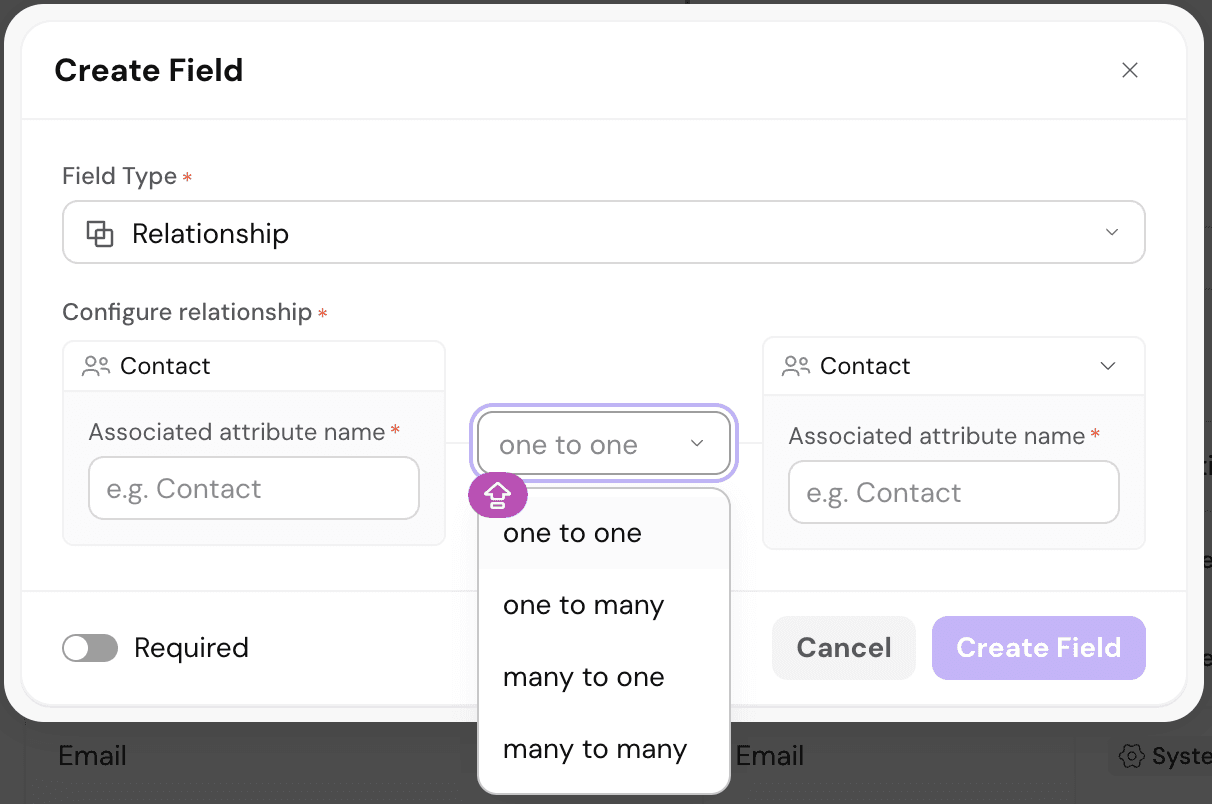
One-to-one
Each record on the left links to exactly one record on the right, and vice versa. Both sides show a single linked record.
Example: A Contact's Personal Email field links to a specific Contact record's Email. Each personal email belongs to one contact, and each contact has one personal email.
One-to-many
One record on the left links to many records on the right, but each right-side record links back to only one left-side record.
Example: A Company links to many Contacts (its employees), but each Contact links back to only one Company.
Many-to-one
The reverse of one-to-many. Many left-side records link to a single right-side record.
Example: Many Subsidiary Companies link to one Parent Company, but each parent shows all its subsidiaries.
Many-to-many
Both sides can link to any number of records on the other side.
Example: A Contact can be involved in many Deals, and a Deal can involve many Contacts.
Editing and archiving a Relationship field
Editing
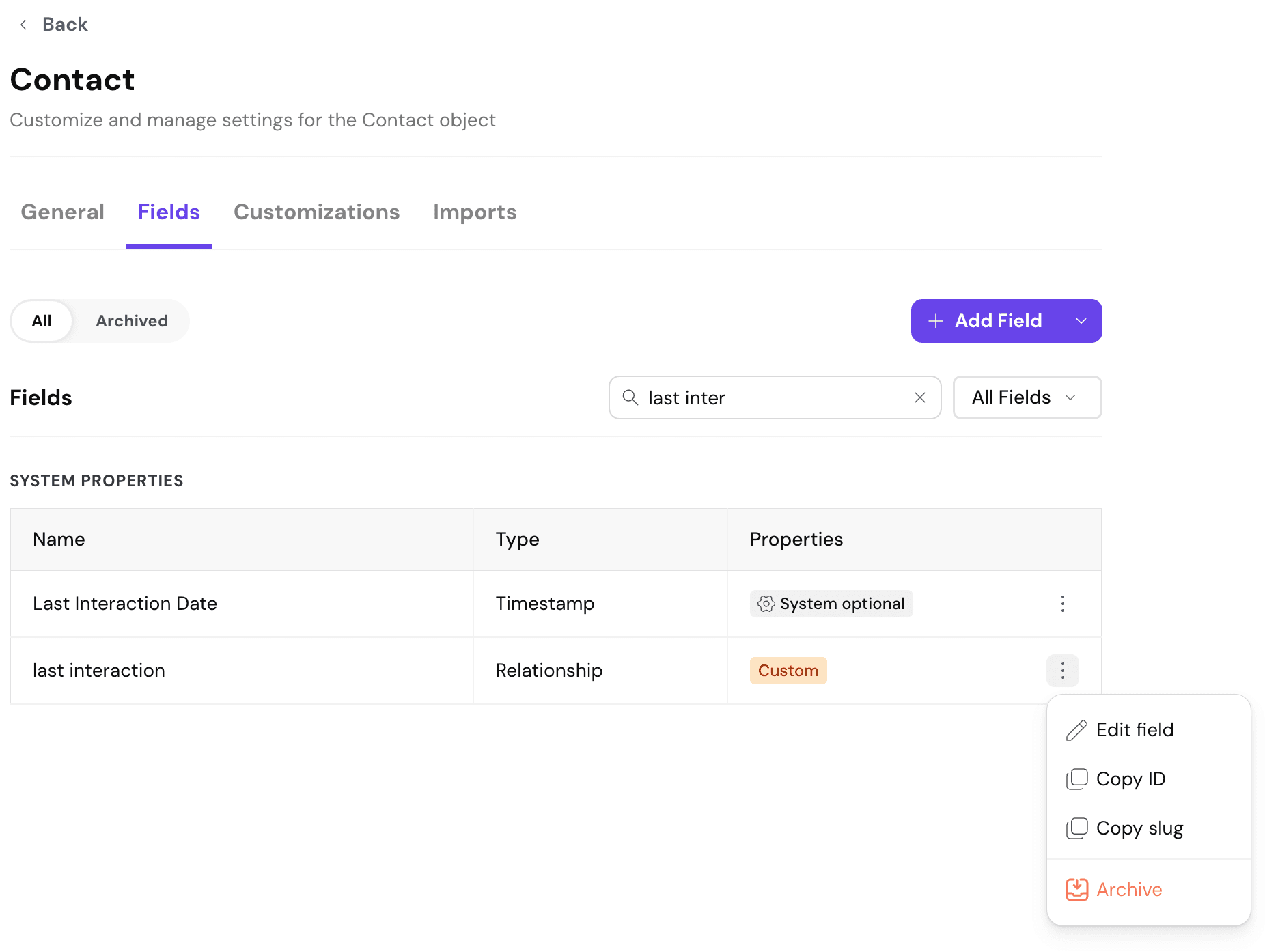
To edit an existing Relationship field, go to the object's Fields tab, find the field, and click the three-dot menu on the right. Select Edit field. The Edit Field modal opens with the same layout as Create Field.
Relationship type changes follow one rule: relationships can only be widened, never restricted.
Options that would restrict the relationship appear greyed out in the dropdown.
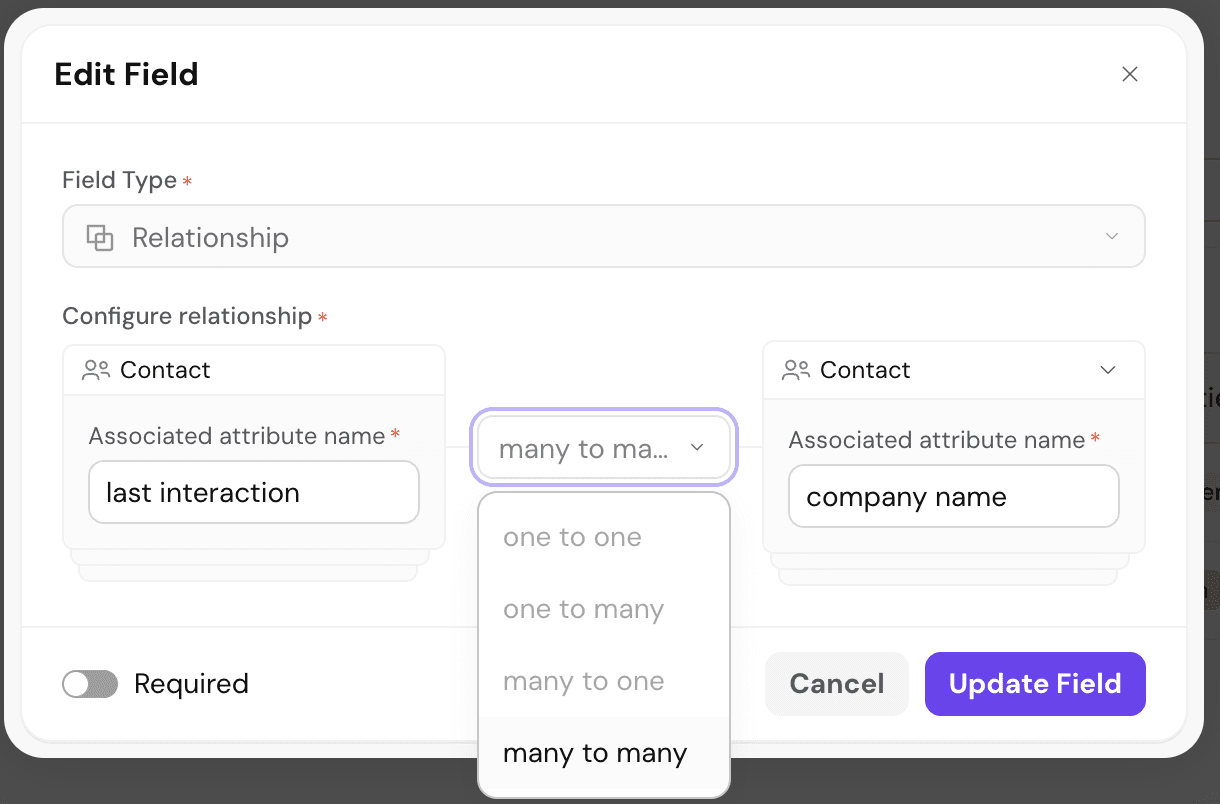
- One-to-one can be widened to one-to-many, many-to-one, or many-to-many.
- One-to-many and many-to-one can be widened to many-to-many.
- Many-to-many cannot be changed to anything else. All other options stay greyed out.
This prevents data loss. Widening a relationship keeps every existing link intact. Restricting it would force records to drop existing associations, so the product blocks it.
Associated attribute names and the target object can be edited any time.
Click Update Field to save changes.
Other actions
The three-dot menu on a field row also offers:
- Copy ID - Copies the field's internal ID, useful for API calls and integrations.
- Copy slug - Copies the field's URL-friendly slug.
- Archive - Removes the field from the object. Only the associations between records break. The records themselves stay intact.
Once a Relationship field is created, records on that object carry their full network of connections. Views can filter or group by linked records, workflows can trigger on relationship changes, and Ask Zulie can answer questions that span multiple records in a chain.
Need help? Reach out to us at [email protected].