
How to use Stage fields
Stage fields track a record's position in a sequence. Every option in a Stage field is a step, and records move from one step to the next as work progresses. Unlike a regular dropdown, a Stage field carries the meaning of order and direction.
Use it any time a record needs to represent where it is in a process.
For an overview of all field types, see Creating Fields. For a broader introduction to fields, see Understanding Fields.
When to use a Stage field
Stage fields are built for processes. Any workflow where records move through defined steps benefits from being modeled as a Stage.
Contact lifecycle
Track how a contact progresses through the customer journey.
Lead → MQL → SQL → Opportunity → Customer.
Each step reflects a real change in the contact's relationship with the business, and reporting can show conversion rates between steps.
Onboarding progress
Track where a new customer or user is in the onboarding process.
Kickoff → Setup → Training → Live.
Kanban views let the CS team see every account by stage, and time-in-stage reporting surfaces onboarding stalls.
How to create a Stage field
Stage fields can be created on Contacts, Companies, and Deals. Follow the standard field creation flow. See Creating Fields for the three entry points.
In the Create Field modal, pick Stage as the field type.
Stage settings
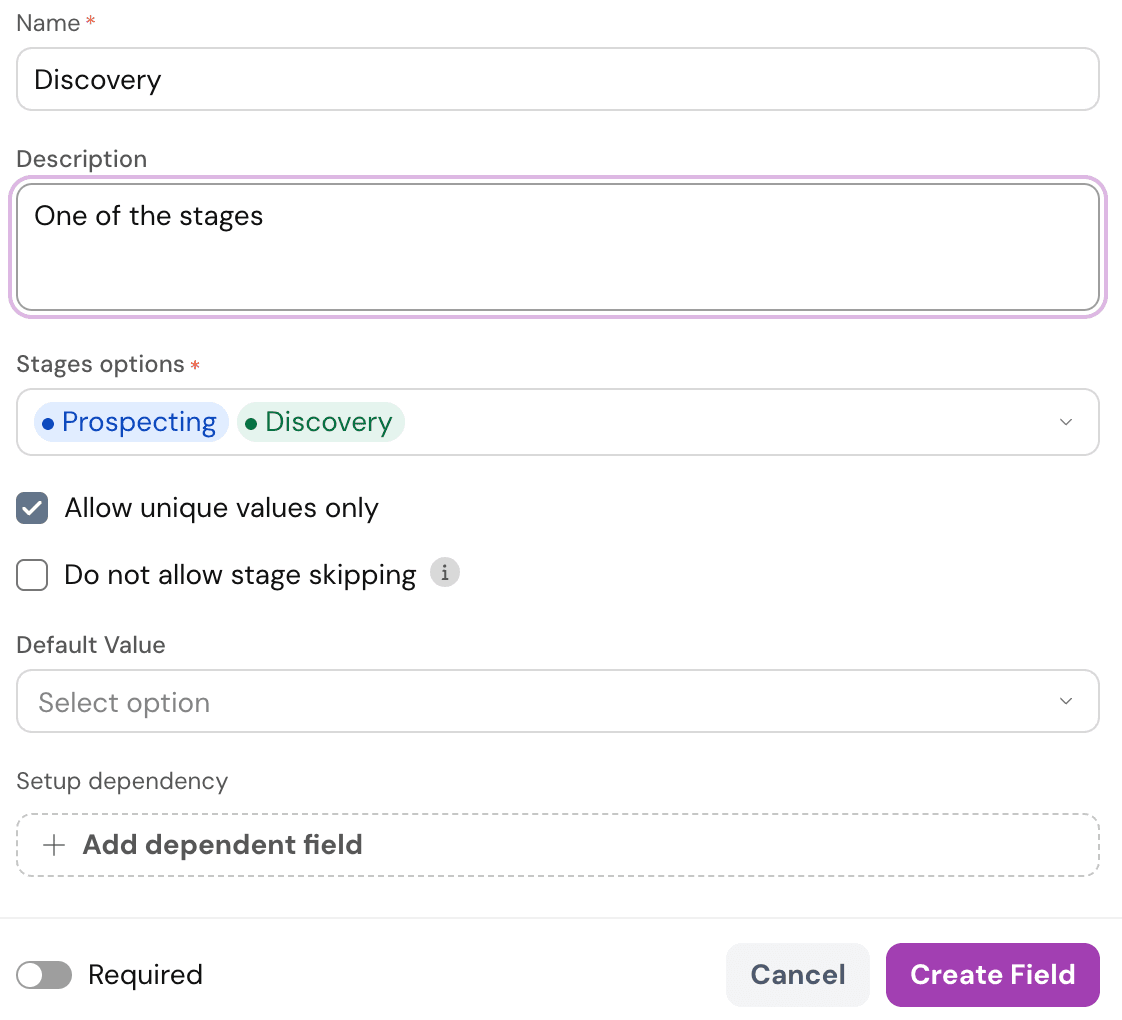
Name (required) - The label for the field on records, views, and filters.
Description (optional) - Context on what the stage tracks.
Stages options (required) - The stages to progress through, added one at a time.
- Click + Add Stage to add a new stage.
- Each stage has a color, a name, and an optional Time in status value (in days).
- Drag the handle on the left of a stage to reorder it. Click the X to delete it.
- Click the three-dot menu on a stage to open Time in status.
Allow unique values only - No two records on the object can share the same stage value.
Do not allow stage skipping - When enabled, records must move through stages in order.
Default Value - The stage every new record starts in.
Setup dependency - Show or hide another field based on which stage is currently active. See Creating Fields → Field dependencies.
Required (toggle at the bottom) - When enabled, the field must have a stage set before a record can be saved.
Click Create Field to save.
Pipeline Field
Pipeline is a default field on the Deals object. It works closely with Stage, so it's worth understanding here.
A single Pipeline field can hold multiple pipelines, each with its own set of Deal Stages. This lets one Deals table power different sales motions side by side without splitting them into separate objects.
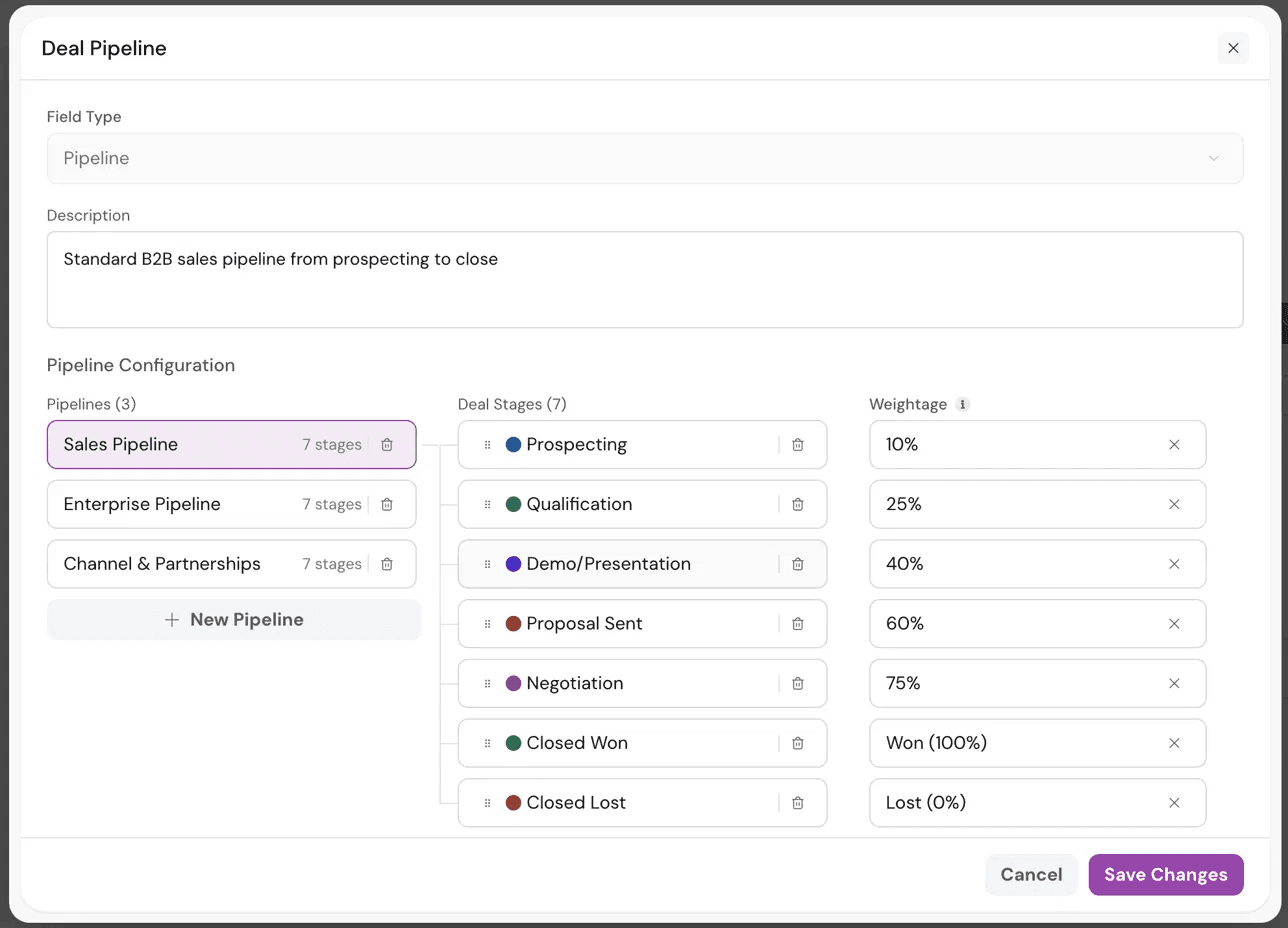
What a Pipeline field includes
Each pipeline has:
- Name and description. Sales Pipeline, Enterprise Pipeline, Channel & Partnerships, or any custom motion.
- A set of Deal Stages. Each stage has a name, color, and weightage.
- Weightage percentages on each stage.
Weightage answers the question "if a deal reaches this stage, how likely is it to close?" It's used to calculate the weighted pipeline value across all open deals, which forecasts revenue more accurately than raw pipeline value. Assign a percentage per stage based on historical win rates.
Common pattern:
- Early stages get low weightage (Prospecting 10%, Qualification 25%)
- Middle stages climb (Demo 40%, Proposal 60%)
- Late stages approach certainty (Negotiation 75%).
- Closed Won and Closed Lost stages. These carry fixed values (Won 100%, Lost 0%) and cannot be re-weighted.
Configuring pipelines
Open a Deal record or the Deals object and edit the Pipeline field. The Pipeline configuration modal opens.
- Left column: Pipelines. All pipelines in the workspace. Click + New Pipeline to add another.
- Middle column: Deal Stages. The stages that make up the selected pipeline. Add, reorder, or delete stages.
- Right column: Weightage. The win probability assigned to each stage.
Click Save Changes to apply.
Pipeline availability by plan is defined by the number of pipelines allowed on the account. See the pricing page for the current limits.
Once a Stage field is created, records on that object gain a new dimension to sort, filter, group, and report on.
Kanban views can be built directly on the stage, workflows can trigger on stage changes, and Ask Zulie can answer questions about progression, bottlenecks, and time in each stage.
Need help? Reach out to us at [email protected].